메인 콘텐츠로 건너뛰기

CrewAI 내장 추적 (Built-in Tracing)

CrewAI는 Crews와 Flows를 실시간으로 모니터링하고 디버깅할 수 있는 내장 추적 기능을 제공합니다. 이 가이드는 CrewAI의 통합 관측 가능성 플랫폼을 사용하여 CrewsFlows 모두에 대한 추적을 활성화하는 방법을 보여줍니다.
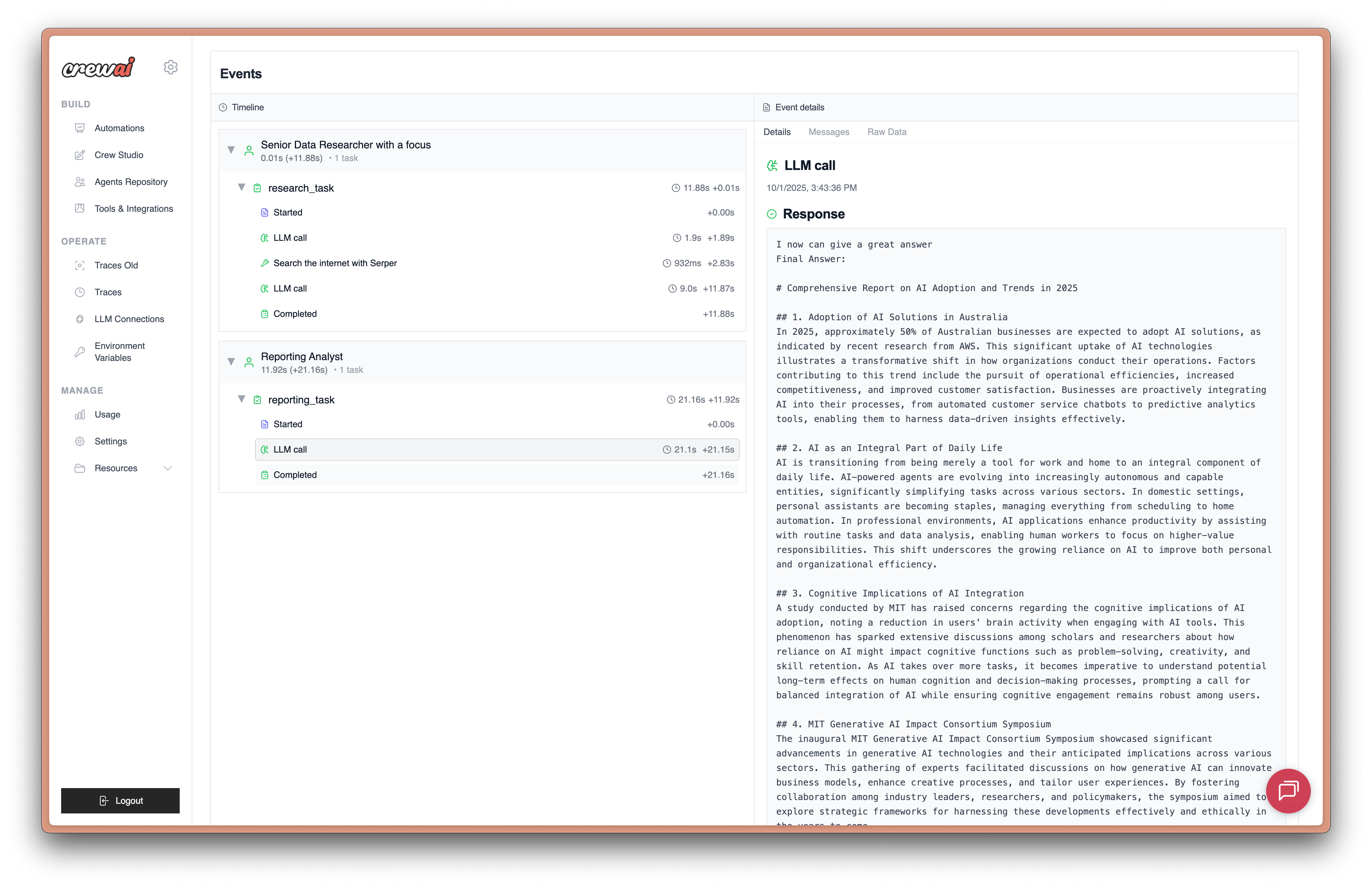
CrewAI Tracing이란? CrewAI의 내장 추적은 agent 결정, 작업 실행 타임라인, 도구 사용, LLM 호출을 포함한 AI agent에 대한 포괄적인 관측 가능성을 제공하며, 모두 CrewAI AOP 플랫폼을 통해 액세스할 수 있습니다.
CrewAI Tracing Interface

사전 요구 사항

CrewAI 추적을 사용하기 전에 다음이 필요합니다:
  1. CrewAI AOP 계정: app.crewai.com에서 무료 계정에 가입하세요
  2. CLI 인증: CrewAI CLI를 사용하여 로컬 환경을 인증하세요
crewai login

설정 지침

1단계: CrewAI AOP 계정 생성

app.crewai.com을 방문하여 무료 계정을 만드세요. 이를 통해 추적, 메트릭을 보고 crews를 관리할 수 있는 CrewAI AOP 플랫폼에 액세스할 수 있습니다.

2단계: CrewAI CLI 설치 및 인증

아직 설치하지 않았다면 CLI 도구와 함께 CrewAI를 설치하세요:
uv add crewai[tools]
그런 다음 CrewAI AOP 계정으로 CLI를 인증하세요:
crewai login
이 명령은 다음을 수행합니다:
  1. 브라우저에서 인증 페이지를 엽니다
  2. 장치 코드를 입력하라는 메시지를 표시합니다
  3. CrewAI AOP 계정으로 로컬 환경을 인증합니다
  4. 로컬 개발을 위한 추적 기능을 활성화합니다

3단계: Crew에서 추적 활성화

tracing 매개변수를 True로 설정하여 Crew에 대한 추적을 활성화할 수 있습니다:
from crewai import Agent, Crew, Process, Task
from crewai_tools import SerperDevTool

# Define your agents
researcher = Agent(
    role="Senior Research Analyst",
    goal="Uncover cutting-edge developments in AI and data science",
    backstory=\"\"\"You work at a leading tech think tank.
    Your expertise lies in identifying emerging trends.
    You have a knack for dissecting complex data and presenting actionable insights.\"\"\",
    verbose=True,
    tools=[SerperDevTool()],
)

writer = Agent(
    role="Tech Content Strategist",
    goal="Craft compelling content on tech advancements",
    backstory=\"\"\"You are a renowned Content Strategist, known for your insightful and engaging articles.
    You transform complex concepts into compelling narratives.\"\"\",
    verbose=True,
)

# Create tasks for your agents
research_task = Task(
    description=\"\"\"Conduct a comprehensive analysis of the latest advancements in AI in 2024.
    Identify key trends, breakthrough technologies, and potential industry impacts.\"\"\",
    expected_output="Full analysis report in bullet points",
    agent=researcher,
)

writing_task = Task(
    description=\"\"\"Using the insights provided, develop an engaging blog
    post that highlights the most significant AI advancements.
    Your post should be informative yet accessible, catering to a tech-savvy audience.\"\"\",
    expected_output="Full blog post of at least 4 paragraphs",
    agent=writer,
)

# Enable tracing in your crew
crew = Crew(
    agents=[researcher, writer],
    tasks=[research_task, writing_task],
    process=Process.sequential,
    tracing=True,  # Enable built-in tracing
    verbose=True
)

# Execute your crew
result = crew.kickoff()

4단계: Flow에서 추적 활성화

마찬가지로 CrewAI Flows에 대한 추적을 활성화할 수 있습니다:
from crewai.flow.flow import Flow, listen, start
from pydantic import BaseModel

class ExampleState(BaseModel):
    counter: int = 0
    message: str = ""

class ExampleFlow(Flow[ExampleState]):
    def __init__(self):
        super().__init__(tracing=True)  # Enable tracing for the flow

    @start()
    def first_method(self):
        print("Starting the flow")
        self.state.counter = 1
        self.state.message = "Flow started"
        return "continue"

    @listen("continue")
    def second_method(self):
        print("Continuing the flow")
        self.state.counter += 1
        self.state.message = "Flow continued"
        return "finish"

    @listen("finish")
    def final_method(self):
        print("Finishing the flow")
        self.state.counter += 1
        self.state.message = "Flow completed"

# Create and run the flow with tracing enabled
flow = ExampleFlow(tracing=True)
result = flow.kickoff()

5단계: CrewAI AOP 대시보드에서 추적 보기

crew 또는 flow를 실행한 후 CrewAI AOP 대시보드에서 CrewAI 애플리케이션이 생성한 추적을 볼 수 있습니다. agent 상호 작용, 도구 사용 및 LLM 호출의 세부 단계를 볼 수 있습니다. 아래 링크를 클릭하여 추적을 보거나 대시보드의 추적 탭으로 이동하세요 여기 CrewAI Tracing Interface

대안: 환경 변수 구성

환경 변수를 설정하여 전역적으로 추적을 활성화할 수도 있습니다:
export CREWAI_TRACING_ENABLED=true
또는 .env 파일에 추가하세요:
CREWAI_TRACING_ENABLED=true
이 환경 변수가 설정되면 tracing=True를 명시적으로 설정하지 않아도 모든 Crews와 Flows에 자동으로 추적이 활성화됩니다.

추적 보기

CrewAI AOP 대시보드 액세스

  1. app.crewai.com을 방문하여 계정에 로그인하세요
  2. 프로젝트 대시보드로 이동하세요
  3. Traces 탭을 클릭하여 실행 세부 정보를 확인하세요

추적에서 볼 수 있는 내용

CrewAI 추적은 다음에 대한 포괄적인 가시성을 제공합니다:
  • Agent 결정: agent가 작업을 통해 어떻게 추론하고 결정을 내리는지 확인하세요
  • 작업 실행 타임라인: 작업 시퀀스 및 종속성의 시각적 표현
  • 도구 사용: 어떤 도구가 호출되고 그 결과를 모니터링하세요
  • LLM 호출: 프롬프트 및 응답을 포함한 모든 언어 모델 상호 작용을 추적하세요
  • 성능 메트릭: 실행 시간, 토큰 사용량 및 비용
  • 오류 추적: 세부 오류 정보 및 스택 추적

추적 기능

  • 실행 타임라인: 실행의 다양한 단계를 클릭하여 확인하세요
  • 세부 로그: 디버깅을 위한 포괄적인 로그에 액세스하세요
  • 성능 분석: 실행 패턴을 분석하고 성능을 최적화하세요
  • 내보내기 기능: 추가 분석을 위해 추적을 다운로드하세요

인증 문제

인증 문제가 발생하는 경우:
  1. 로그인되어 있는지 확인하세요: crewai login
  2. 인터넷 연결을 확인하세요
  3. app.crewai.com에서 계정을 확인하세요

추적이 나타나지 않음

대시보드에 추적이 표시되지 않는 경우:
  1. Crew/Flow에서 tracing=True가 설정되어 있는지 확인하세요
  2. 환경 변수를 사용하는 경우 CREWAI_TRACING_ENABLED=true인지 확인하세요
  3. crewai login으로 인증되었는지 확인하세요
  4. crew/flow가 실제로 실행되고 있는지 확인하세요
